

Manage instance users Enterprise
User management lets instance admins view all users across the instance and manage their access. This is separate from workspace-level member management.
View users
Go to God Mode → User Management to see all users in the instance.
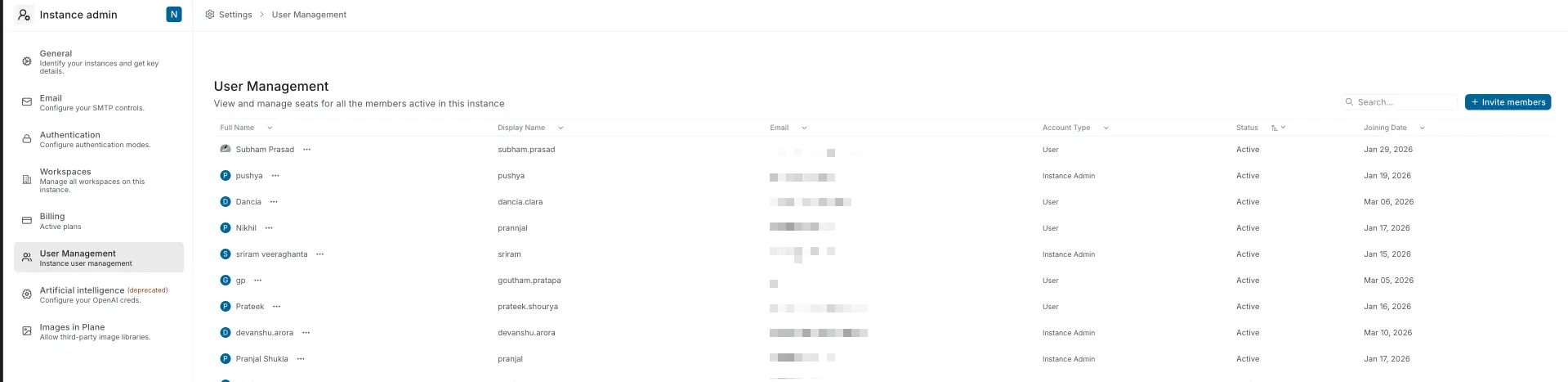
The table displays:
| Column | Description |
|---|---|
| Full Name | User's full name |
| Display Name | User's display name |
| User's email address | |
| Account Type | User or Instance Admin |
| Status | Active or Suspended |
| Joining Date | When the user joined |
Use the search bar to find specific users.
Invite an instance admin
Instance admins have access to God Mode but are not automatically added to any workspace.
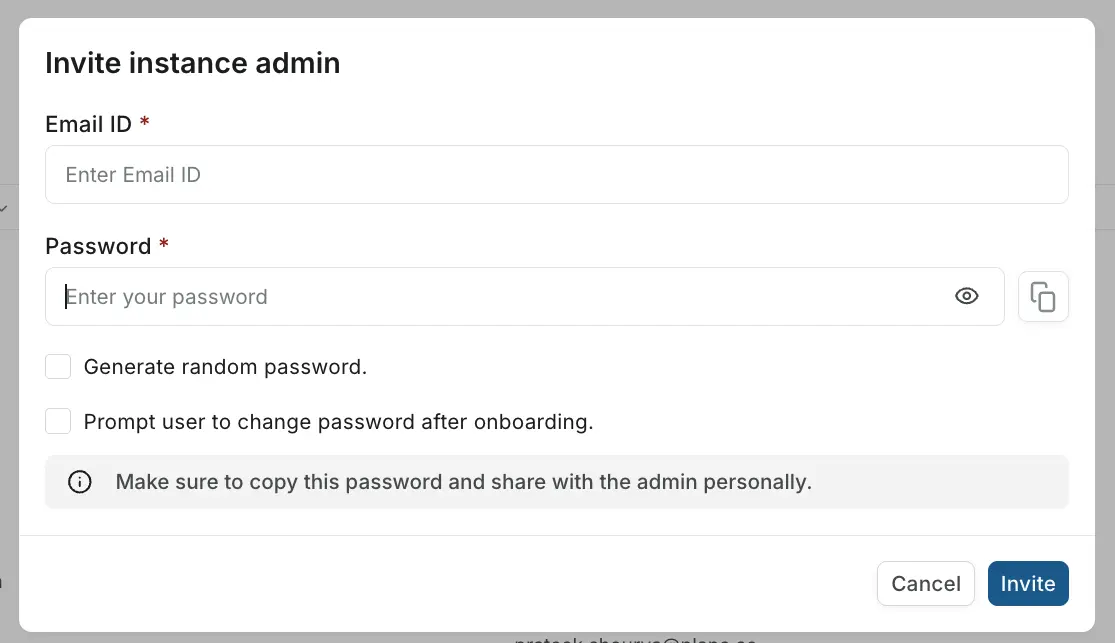
- Click Invite members.
- Enter the user's email and password.
- Optionally enable:
- Generate random password — auto-create a password
- Prompt user to change password after onboarding — require password reset on first login
- Click Invite.
WARNING
No invitation email is sent. You must share the credentials with the user manually.
Manage user access
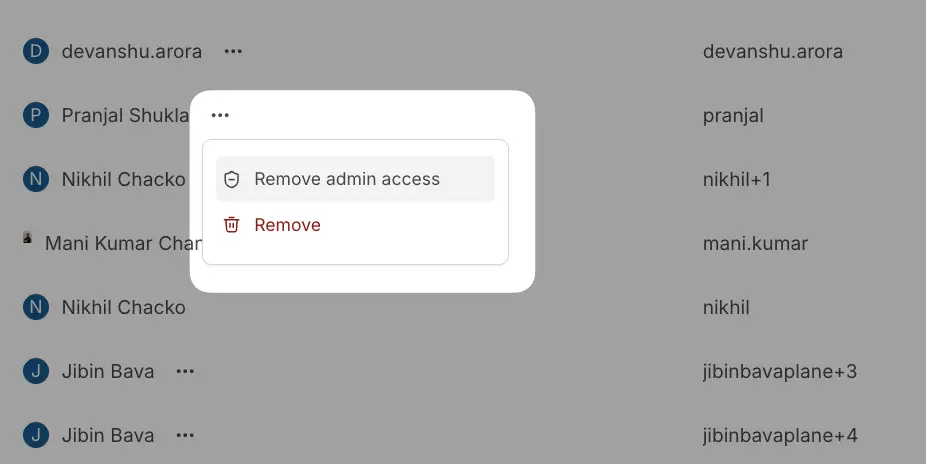
Click … next to any user to:
- Grant admin access — promote a user to Instance Admin.
- Remove admin access — downgrade an Instance Admin to a regular user (loses God Mode access).
- Remove — remove the user from the instance entirely.
User status
| Status | Description |
|---|---|
| Active | User can access the instance |
| Suspended | User account exists but cannot access the instance |